b-ark-chrome user guide
Install, connect, and back up your blipfoto journal from your browser: every photo, caption, comment and piece of metadata, safely on your own machine — on Windows, Mac or Linux.
1. Install from the Chrome Web Store
b-ark-chrome installs in one click from the Chrome Web Store — no installer, no security warnings, and Chrome keeps it up to date automatically. It works in Chrome or Edge on Windows, Mac and Linux.
- Open the b-ark-chrome listing on the Chrome Web Store.
- Click "Add to Chrome", then confirm "Add extension".
- Click the puzzle-piece (Extensions) icon in the toolbar and pin b-ark-chrome so it stays visible.
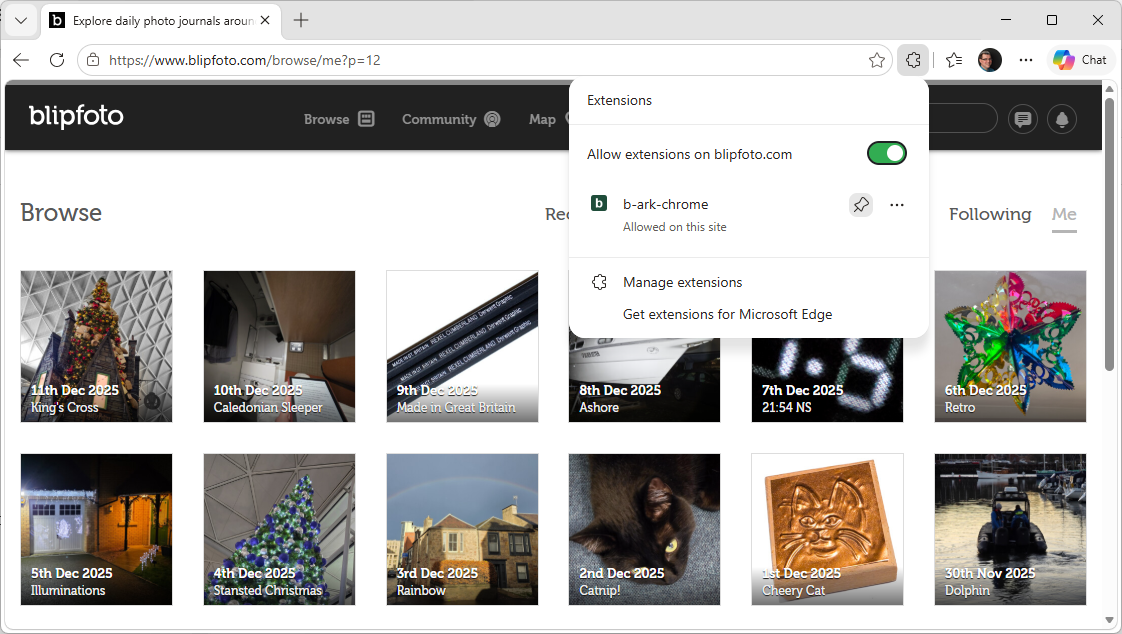
2. Open the backup page
Click the b-ark-chrome icon in your toolbar to open the backup page. This is the single tab where you choose a folder, connect your account, and watch backups run. b-ark-chrome keeps one canonical backup tab — clicking the icon again brings you back to it rather than opening a duplicate.
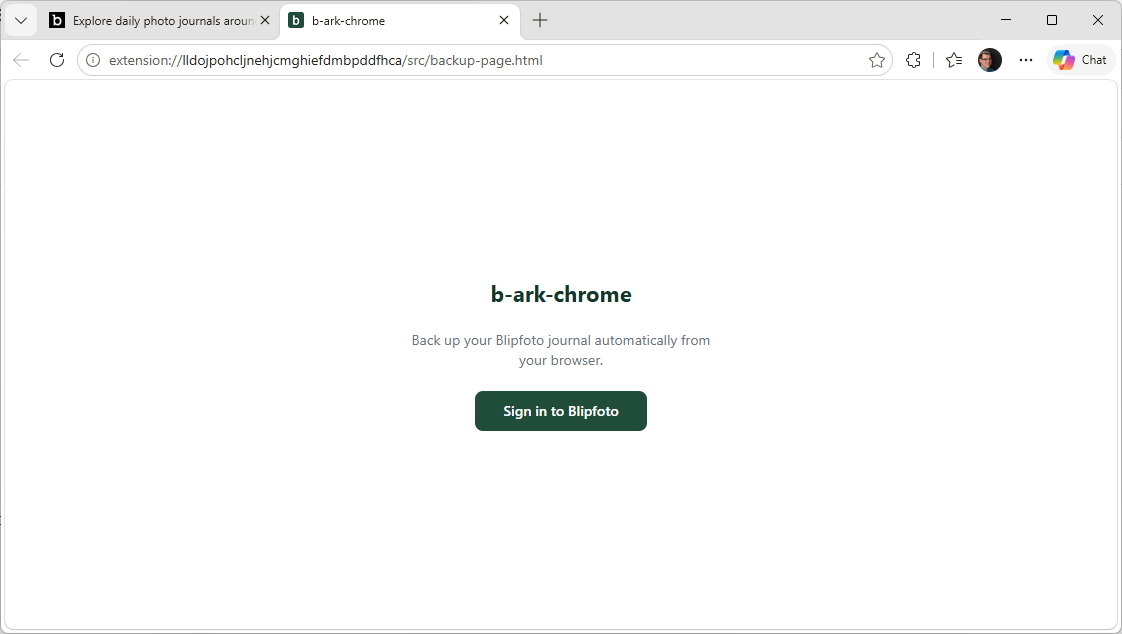
3. Connect your blipfoto account
b-ark-chrome backs up a single blipfoto account. To connect it, you authorise read-only access to your journal.
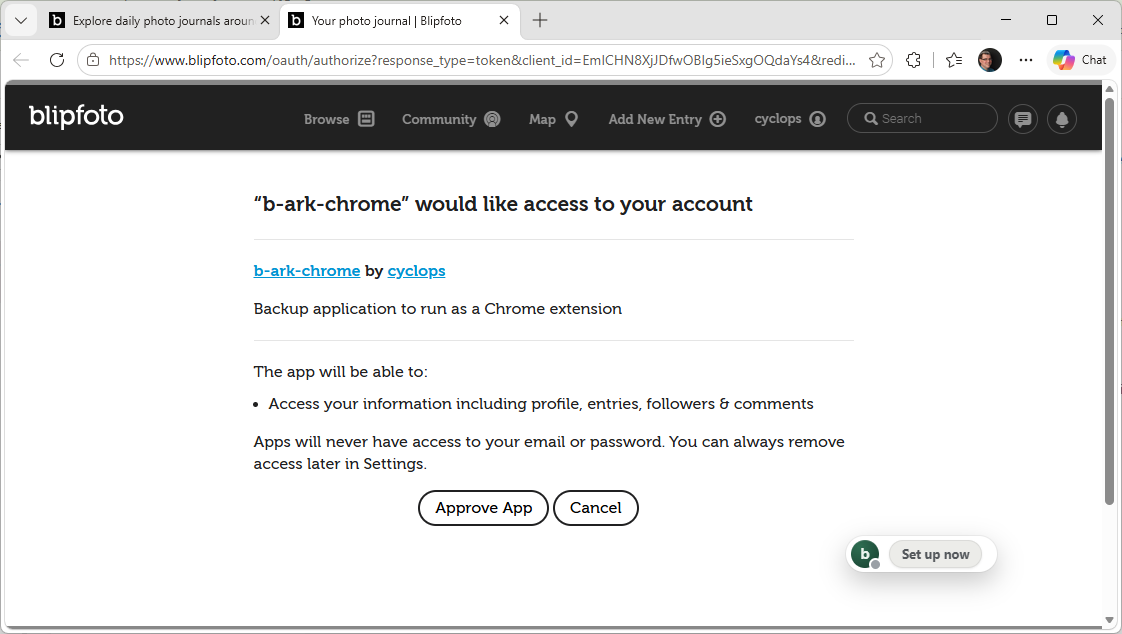
- Click "Connect account" (or "Sign in").
- A blipfoto authorisation page opens. Log in if needed and approve read access.
- You are returned to the backup page, which now shows your journal title, username, and entry count.
Your token stays on your machine. The access token b-ark-chrome receives is encrypted at rest in your browser and used only to talk to blipfoto. It is never sent anywhere else. See Privacy below.
4. Choose a backup folder
The first thing b-ark-chrome asks you to do is pick a folder on your computer where it will store your backup files and its portable settings. It uses your browser's File System Access API, so your files are written straight to a folder you choose — nothing is uploaded anywhere.
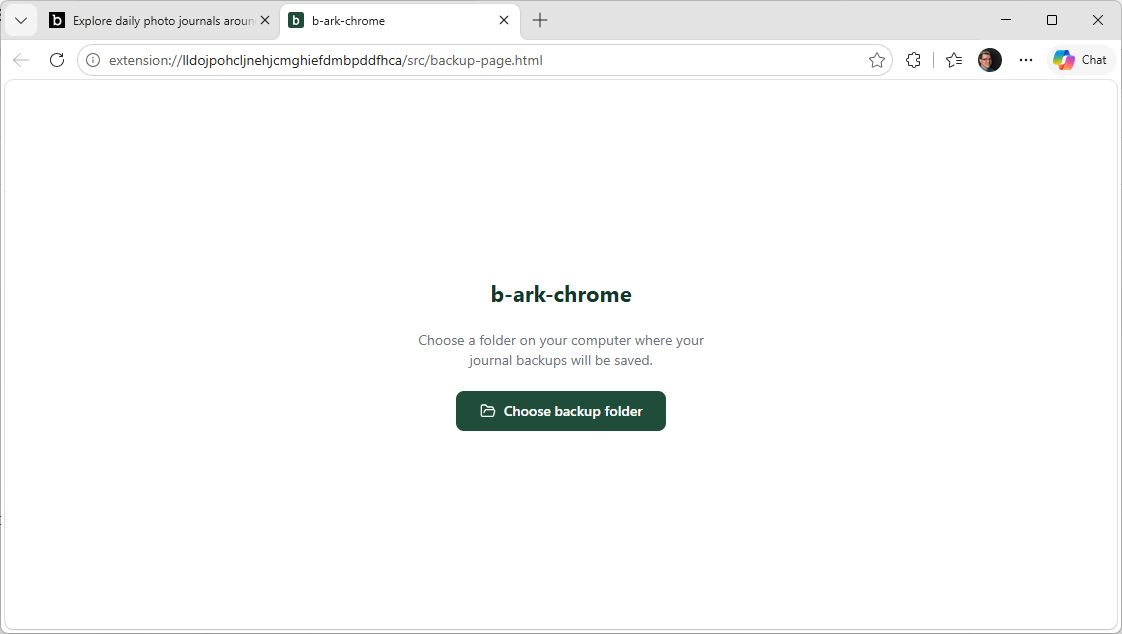
- Click "Choose folder…".
- Select an existing empty folder, or create a new one, then confirm.
- When the browser asks, click "Edit files" / "Allow" to grant b-ark-chrome permission to save into that folder.
Re-granting permission: for your security, the browser may ask you to confirm folder access again after you restart the browser. If the backup page shows "access needed", just click "Grant" and approve — your folder choice is remembered, so you never have to pick it again.
If a b-ark-settings.json file already exists in the folder you choose
(for example, you are setting up on another machine and pointed at the same
cloud-synced folder), b-ark-chrome loads your previous settings automatically.
5. Run your first backup
Click "Back up now" on the backup page to start immediately. After the first run, b-ark-chrome keeps your archive up to date automatically using two event-based triggers (both configurable in Settings):
- Backup on visit. Each time you open a blipfoto page, b-ark-chrome checks whether a backup is due (on a Daily or Weekly cadence you choose) and, if so, runs one silently in the background.
- Backup on publish. When you publish or save an entry on blipfoto, b-ark-chrome captures it within seconds.
When backups run. Backups are triggered when you visit blipfoto or publish, or when you press "Back up now" — there is no background timer. If you post from a phone or tablet, the backup runs the next time you open blipfoto in this browser.
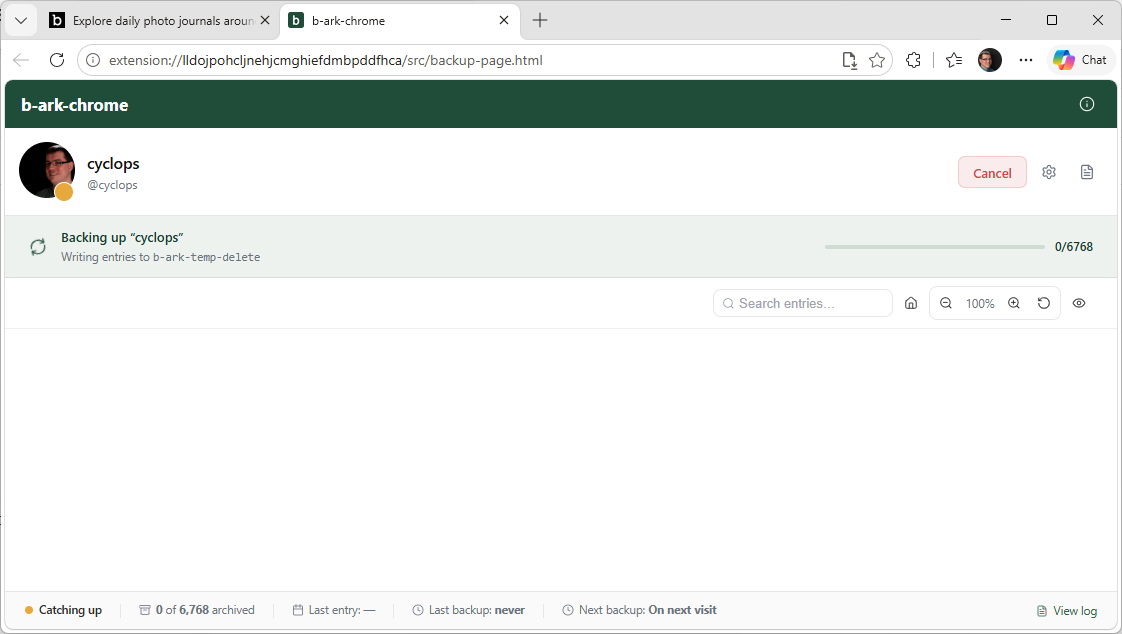
While backing up, a progress banner shows which phase b-ark-chrome is in:
| Phase | What it means |
|---|---|
| NEW | Fetching entries b-ark-chrome has never downloaded before. |
| GAPS | Filling in any entries that were missed on previous runs. |
| REDO | Re-downloading your most recent entries in case captions or comments have changed. |
| FIX | Repairing any images that failed to download cleanly on a previous run. |
If blipfoto's rate limit is reached mid-backup, b-ark-chrome pauses and counts down automatically before resuming. No action needed.
Your journal thumbnails appear on the backup page.
6. The status chip
On blipfoto pages, b-ark-chrome shows a small, draggable status chip. Its colour tells you the health of your backup at a glance (green = up to date, amber = working or due, red = needs attention), and it shows live progress while a backup is running.
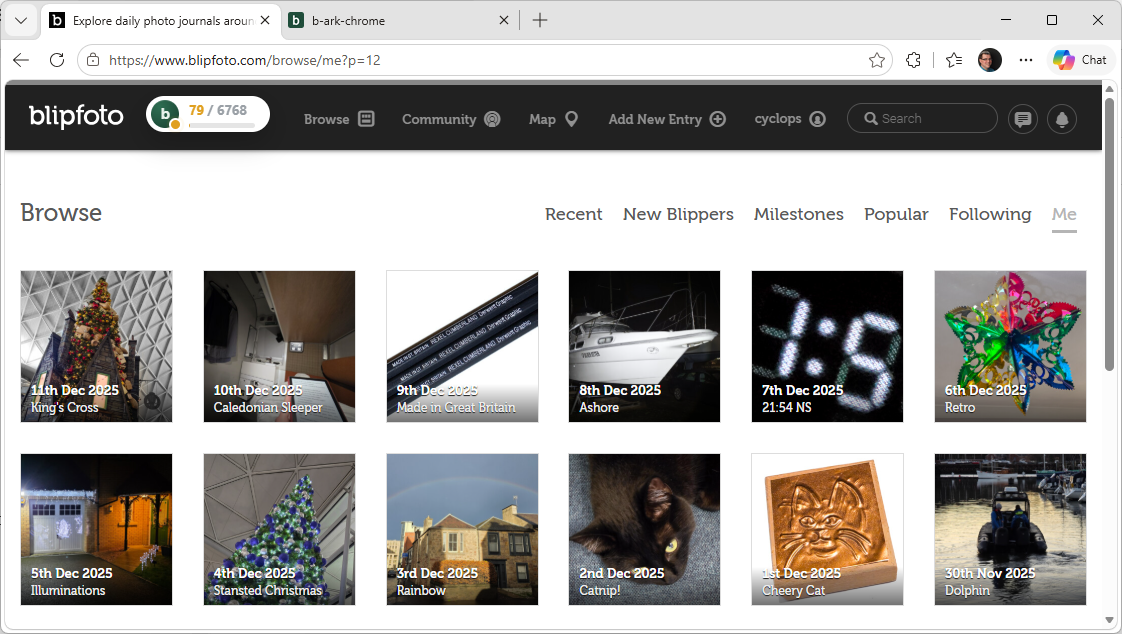
- Drag the chip anywhere on the page; it remembers its position.
- Hover for a tooltip with your last backup time and any error detail.
- You can hide the chip in Settings, or show your blipfoto avatar on it instead of the b-ark logo. Backups still run when the chip is hidden.
7. Settings reference
Open settings from the gear icon on the backup page. The settings panel shows the following, in order:
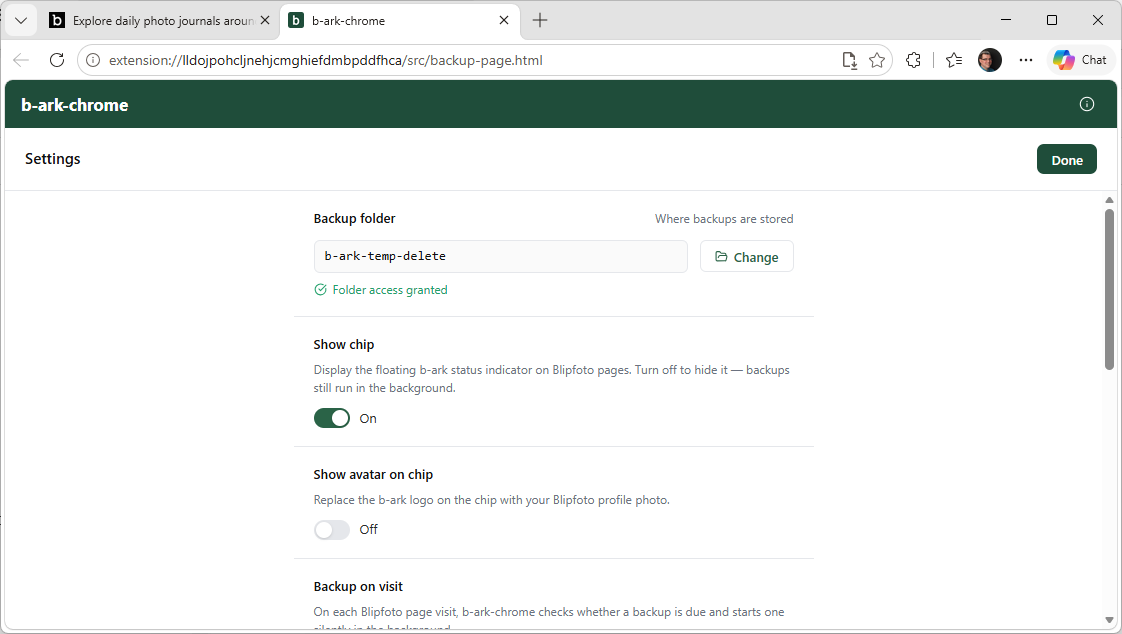
| Setting | What it does |
|---|---|
| Backup folder | Shows where your backups are stored. Click "Change" to pick a different folder. A permission indicator shows whether access is granted; if not, click "Grant" to re-approve. |
| Show chip | Show or hide the floating status chip on blipfoto pages. Backups still run in the background when it is off. |
| Show avatar on chip | Replace the b-ark logo on the chip with your blipfoto profile photo. |
| Backup on visit | When enabled, each blipfoto page visit checks whether a backup is due and starts one silently if it is. Choose how often a backup becomes due with the Daily / Weekly dropdown. |
| Backup on publish | Start a backup immediately when you publish or save an entry on blipfoto. |
| Gap check | How many days back b-ark-chrome looks on each run to catch entries it may have missed previously. Default: 30 days. |
| Redo | How many of your most-recent entries b-ark-chrome re-downloads on every run, to pick up any edits to captions, titles, or comments. Default: 7 entries. |
| Account | Shows your connected blipfoto username. "Reauthorise" renews access (with a "Sign in fresh" option to use a different blipfoto identity); "Sign out" disconnects the account. |
| Version | The installed b-ark-chrome version, shown at the foot of the panel. |
8. Browsing your journal with b-view
You can browse your backed-up journal with b-view, which has a thumbnail grid view and an entry view.
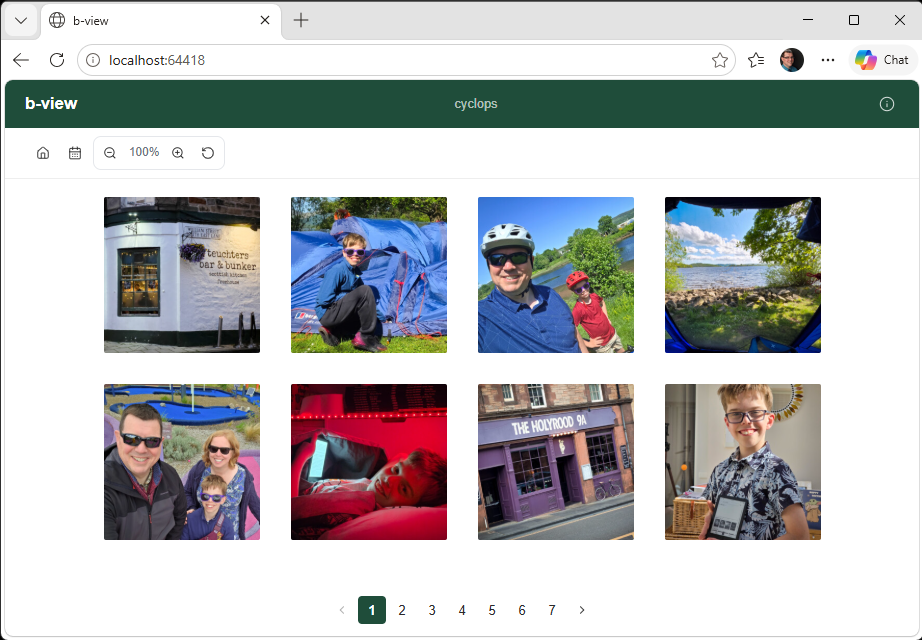
- Zoom controls (+ / − / reset) adjust thumbnail size between 30% and 200%.
- Left and right arrow keys move between pages of thumbnails.
- The calendar icon opens a date picker so you can jump straight to a specific month and year.
- Click any thumbnail to open the full entry.
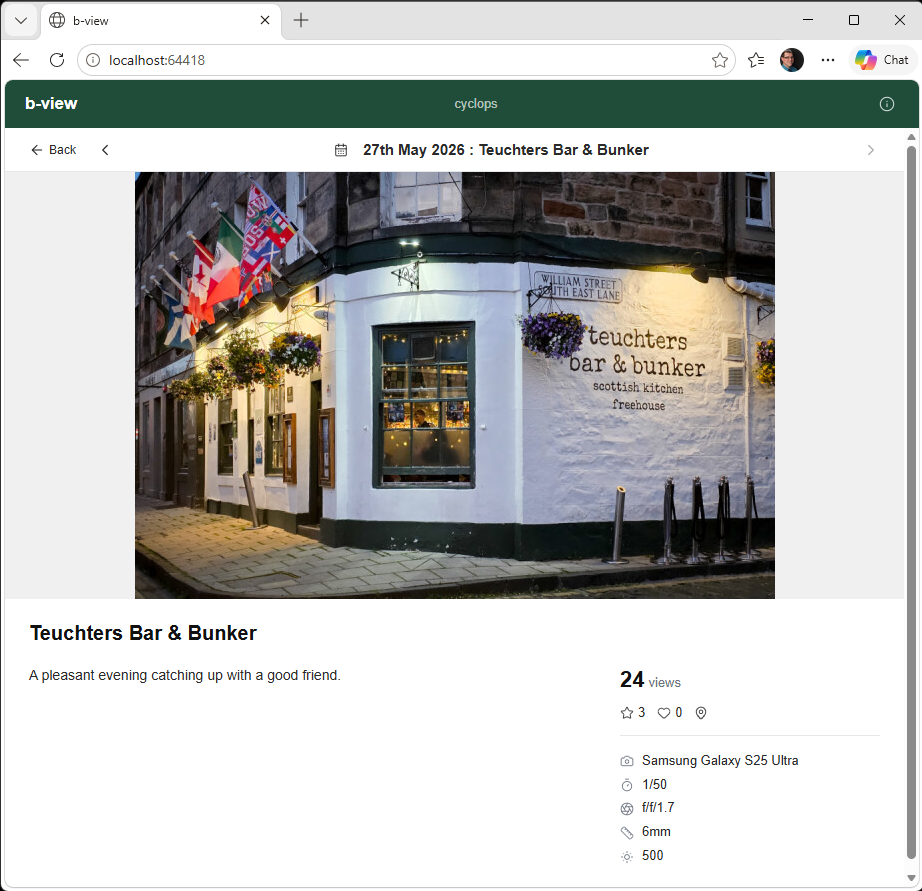
Inside an entry you can see the full-size photo, title, description, tags, comments (including nested replies), engagement counts (views, stars, favourites), location, and camera EXIF data if present.
b-view direct (without the extension)
Your backup folder contains an index.html file. Open it in Chrome,
Edge or Firefox.
- b-view prompts you to "Open backup folder": click it and select your backup folder using the native folder picker.
- Navigation is then identical to the grid and entry views above.
Note: This mode requires the File System Access API, which is supported in Chrome, Edge and Firefox. Safari and older browsers are not supported.
b-view for publishing a website
b-view can publish your backup as a website too. Copy your backup folder to any static web host and browse to the URL — b-view does the rest. No setup required.
9. Using your backup with AI
Your backup folder contains a README.md file. It explains your
journal's data format and gives guidance on using the backup with AI assistants:
Claude, ChatGPT, Copilot, Gemini, and others.
The README includes:
- Ready-to-use example prompts ("Create a PDF of all entries from 2022", "Find my 10 happiest-sounding entries", "What cameras have I used over the years?").
- Instructions for the AI on how to approach large journals (a two-pass method: score and shortlist all entries first, then produce the requested output).
- The full data schema so the AI understands the file and folder structure.
Recommended workflow using Claude Projects
- Create a new Claude Project.
- Upload your backup folder, or the files within it.
- Start your first message with: "Please read the README.md file in this backup before we start."
- Describe what you want: a photo book, a timeline, a search, a summary, or something else.
Example prompts
Here are some examples of things you could ask an AI to do with your backup. Feel free to adapt them.
By date
- "Create a PDF document of all my entries from 2022."
- "Make a presentation of my entries between 1st and 31st August 2019."
By tag or keyword
- "Build a photo book of all my entries tagged 'walking'."
- "Create a presentation of entries where I mention my dog."
By engagement
- "Make a presentation of my 20 most favourited entries."
- "Create a spreadsheet showing how many entries I posted each month, and which got the most views."
By mood or theme
- "Find my 10 happiest-sounding entries and make a presentation."
- "Create a document of entries where I seem to be reflecting on getting older."
By camera or location
- "Make a photo book of everything I shot on my Fujifilm X100."
- "Create a presentation of all my entries taken in Japan."
Questions and searches
Not every request needs to produce a document. Sometimes you just want an answer. Try:
- "What are the dates of all my entries that mention Brighton?"
- "Where did I buy the loganberry jam I mentioned?"
- "How many entries did I post in 2018, and which month was most active?"
- "What cameras have I used over the years?"
10. Privacy
b-ark-chrome backs up your journal to a folder you choose, on your own machine. Your blipfoto access token is encrypted at rest in your browser and used only to talk to blipfoto — it is never broadcast or sent anywhere else. The extension collects no analytics.
For the full details of what data the extension handles and where it is stored, see the b-ark-chrome privacy policy.